
Add an event from your inbox to your calendar
- Reading
- 3 mins
- Category
- Using Proton Calendar
You can add events from your Proton Mail inbox to your Proton Calendar when you receive an email with a calendar attachment (ICS file). Event invitations can be accepted or denied directly from Proton Mail and are automatically added to your calendar.
Plans
All free and paid plans
Platforms
Proton on the web, Windows, macOS, Linux, Android, iOS and iPadOS
How to add event invitations to your Proton Calendar
Windows, macOS, and Linux
Note: You cannot respond to invitations forwarded to your Proton Mail inbox from another email address.
1. Open the Proton Mail app.
2. Open the invitation email.
3. At the top of the email, you’ll see the event details.

4. Confirm your response by clicking Yes, Maybe, or No.

5. The event will automatically be added to your Proton Calendar, and your response will be sent to the organizer.
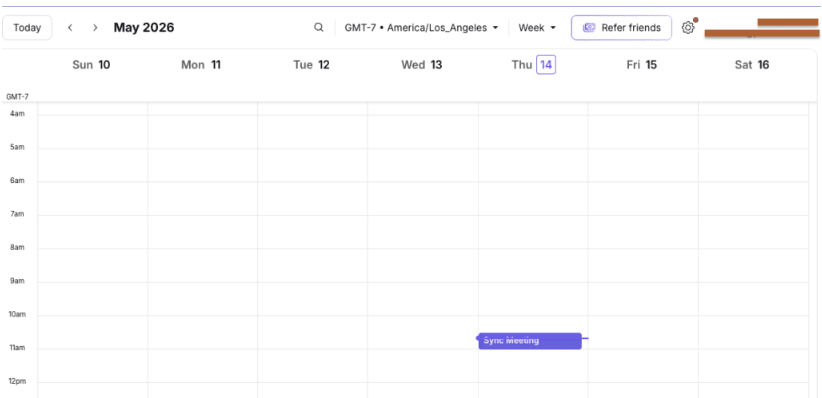
You can change your response at any time in the Proton Calendar.
i. Switch to Proton Calendar app by clicking the app button in the top left:

ii. Select the calendar app:

iii. Click the event and choose a new response from the Attending? dropdown menu.

The calendar will automatically update if you or the event organizer changes or cancels the event.

Proton on the web
Note: You cannot respond to invitations forwarded to your Proton Mail inbox from another email address.
1. Sign in at mail.proton.me(new window)
2. Open the invitation email.
3. At the top of the email, you’ll see the event details.
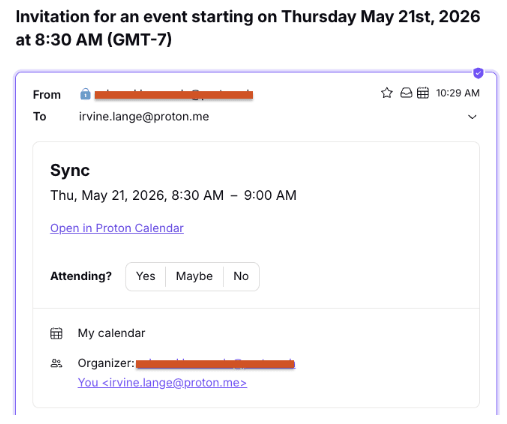
4. Confirm your response by clicking Yes, Maybe, or No.
5. The event will automatically be added to your Proton Calendar(new window), and your response will be sent to the organizer.
The calendar will automatically update if you or the event organizer changes or cancels the event.
Android, iOS, and iPadOS
Note: You cannot respond to invitations forwarded to your Proton Mail inbox from another email address.
1. Open the Proton Mail app.
2. Open the invitation email.

3. At the top of the email, you’ll see the event details.

4. Confirm your response by clicking Yes, Maybe, or No.

5. The event will automatically be added to your Proton Calendar, and your response will be sent to the organizer.

You can change your response to the event at any time by clicking the event in the Proton Calendar app and selecting a new response from the Attending? field at the bottom.
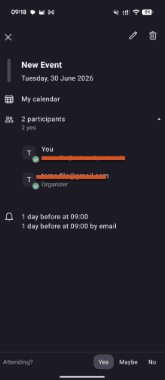
The calendar will automatically update if you or the event organizer changes or cancels the event.
Add events and reminders from your Proton Mail inbox
Proton Calendar will add events from emails like appointment reminders, booking confirmations, and conference registrations.
Emails that don’t require a response show an Add to Proton Calendar button instead of the Yes, Maybe, and No response options used for invitations.
Clicking the Add to Proton Calendar button adds the event to your Proton Calendar without notifying the sender.